quilt
EventBridge Integration: Resolving S3 Event Conflicts
When using Quilt alongside other AWS services that consume S3 events (like FSx, Lambda triggers, or custom applications), you may encounter conflicts because S3 only allows one event notification configuration per bucket. This guide shows you how to resolve these conflicts using AWS EventBridge.
🎯 Understanding the Problem
How Quilt Uses S3 Events
By default, Quilt automatically creates S3 Event Notifications to:
- Keep its managed Elasticsearch index up-to-date
- Track changes to bucket contents in real-time
- Maintain package metadata and search functionality
Default Quilt Event Flow:
S3 Bucket → S3 Event Notification → SNS Topic → SQS Queue → Lambda → Elasticsearch
The S3 Event Limitation
AWS S3 Limitation: Each S3 bucket can only have one event notification configuration. This means:
❌ This Won’t Work:
S3 Bucket ──┬── Quilt Event Notification
            └── FSx Event Notification     ← CONFLICT!
✅ This Will Work:
S3 Bucket → EventBridge → ┬── Quilt SNS Topic
                          └── FSx Event Handler
🛠️ Solution Options
Option 1: SNS Fanout (Recommended)
Use SNS to distribute events to multiple consumers:
- Best for: Multiple AWS services needing S3 events
- Complexity: Medium
- Reliability: High
- Guide: AWS Fanout Pattern
Option 2: EventBridge Routing (This Guide)
Use EventBridge to create synthetic S3 events:
- Best for: Complex event routing and transformation
- Complexity: Medium-High
- Reliability: High
- Flexibility: Highest
Option 3: Just-in-Time Resources
Spin up resources only when needed:
- Best for: Batch processing workloads
- Complexity: Low
- Cost: Lowest
- Limitation: Not suitable for real-time use cases
🚀 EventBridge Implementation Guide
This section provides a complete step-by-step guide to set up EventBridge routing for S3 events to resolve conflicts between Quilt and other services.
Prerequisites
Before starting, ensure you have:
- ✅ AWS CLI or Console access with appropriate permissions
- ✅ A Quilt deployment already running
- ✅ The S3 bucket you want to add to Quilt
- ✅ CloudTrail enabled for the bucket (Quilt requirement)
Step-by-Step Implementation
Step 1: Create SNS Topic
Create an SNS topic in the same region as your S3 bucket:
# Using AWS CLI
aws sns create-topic \
    --name quilt-eventbridge-notifications \
    --region us-east-1

# Note the TopicArn from the response
Console Steps:
- Navigate to SNS Console → Topics → Create topic
- Type: Standard
- Name:
quilt-eventbridge-notifications - Region: Same as your S3 bucket
- Click Create topic and note the ARN
Step 2: Verify CloudTrail Configuration
Quilt requires CloudTrail for S3 data events. Check your CloudFormation stack:
Option A: Quilt-Managed Trail
- Go to CloudFormation → Your Quilt Stack → Resources
- Look for a CloudTrail resource
- Quilt will automatically add your bucket to this trail
Option B: Existing Trail
- Go to CloudFormation → Your Quilt Stack → Parameters
- Find the CloudTrail bucket parameter
- Manually add your bucket to the existing trail in CloudTrail console
Step 3: Create EventBridge Rule
Create an EventBridge rule to capture S3 events:
Console Steps:
- Navigate to EventBridge Console → Rules → Create rule
- Builder mode: Advanced builder (step-by-step configuration)
- Name:
quilt-s3-events-rule - Event bus: default
- Click Next
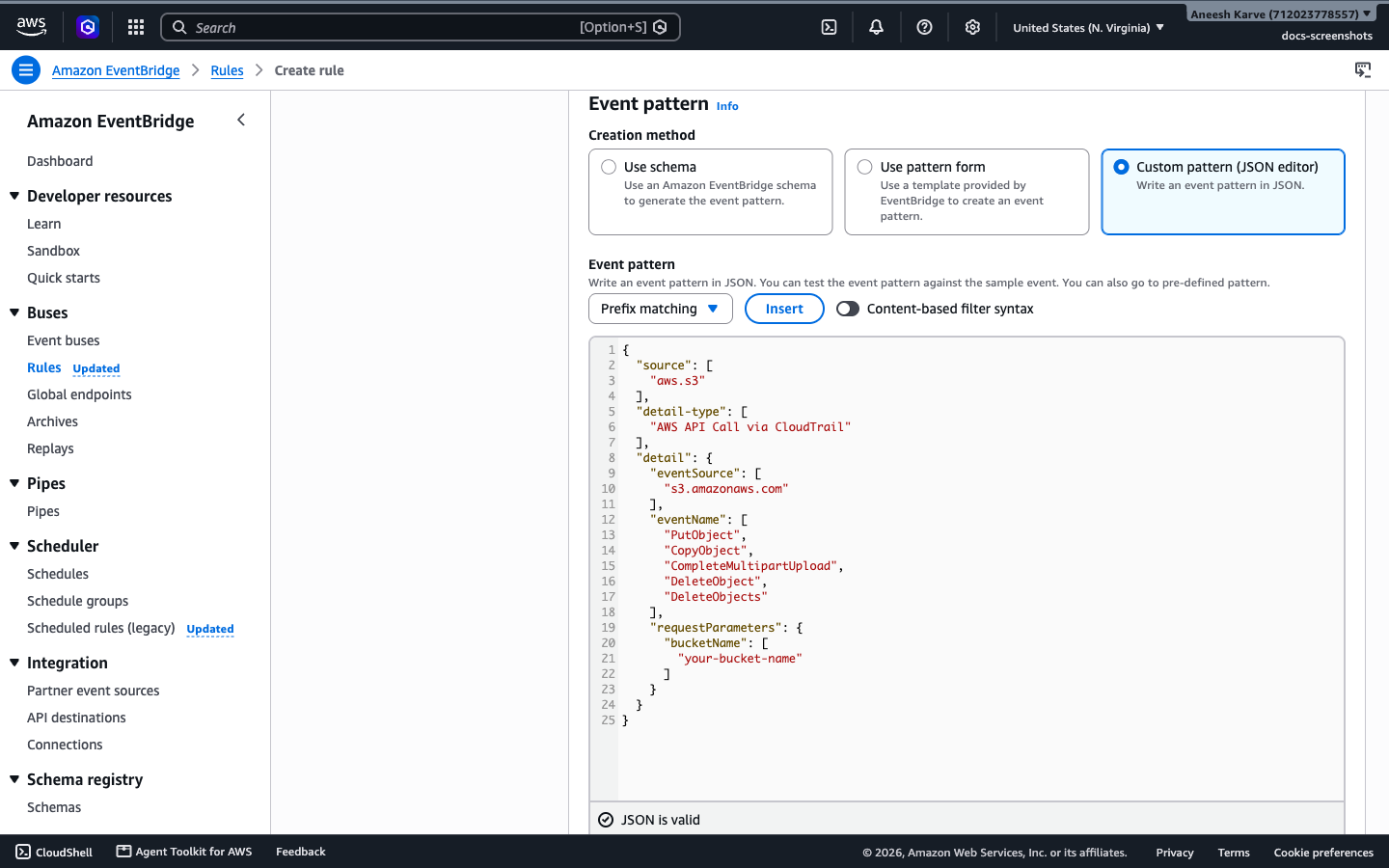
Step 4: Configure Event Pattern
Set up the event pattern to capture S3 operations:
- Event source: AWS events or EventBridge partner events
- Under Event pattern, choose Custom pattern (JSON editor)
- Paste the pattern below, replacing
your-bucket-namewith the name of your bucket - Confirm the editor reports JSON is valid, then click Next
Event Pattern JSON:
{
  "source": ["aws.s3"],
  "detail-type": ["AWS API Call via CloudTrail"],
  "detail": {
    "eventSource": ["s3.amazonaws.com"],
    "eventName": [
      "PutObject",
      "CopyObject",
      "CompleteMultipartUpload",
      "DeleteObject",
      "DeleteObjects"
    ],
    "requestParameters": {
      "bucketName": ["your-bucket-name"]
    }
  }
}
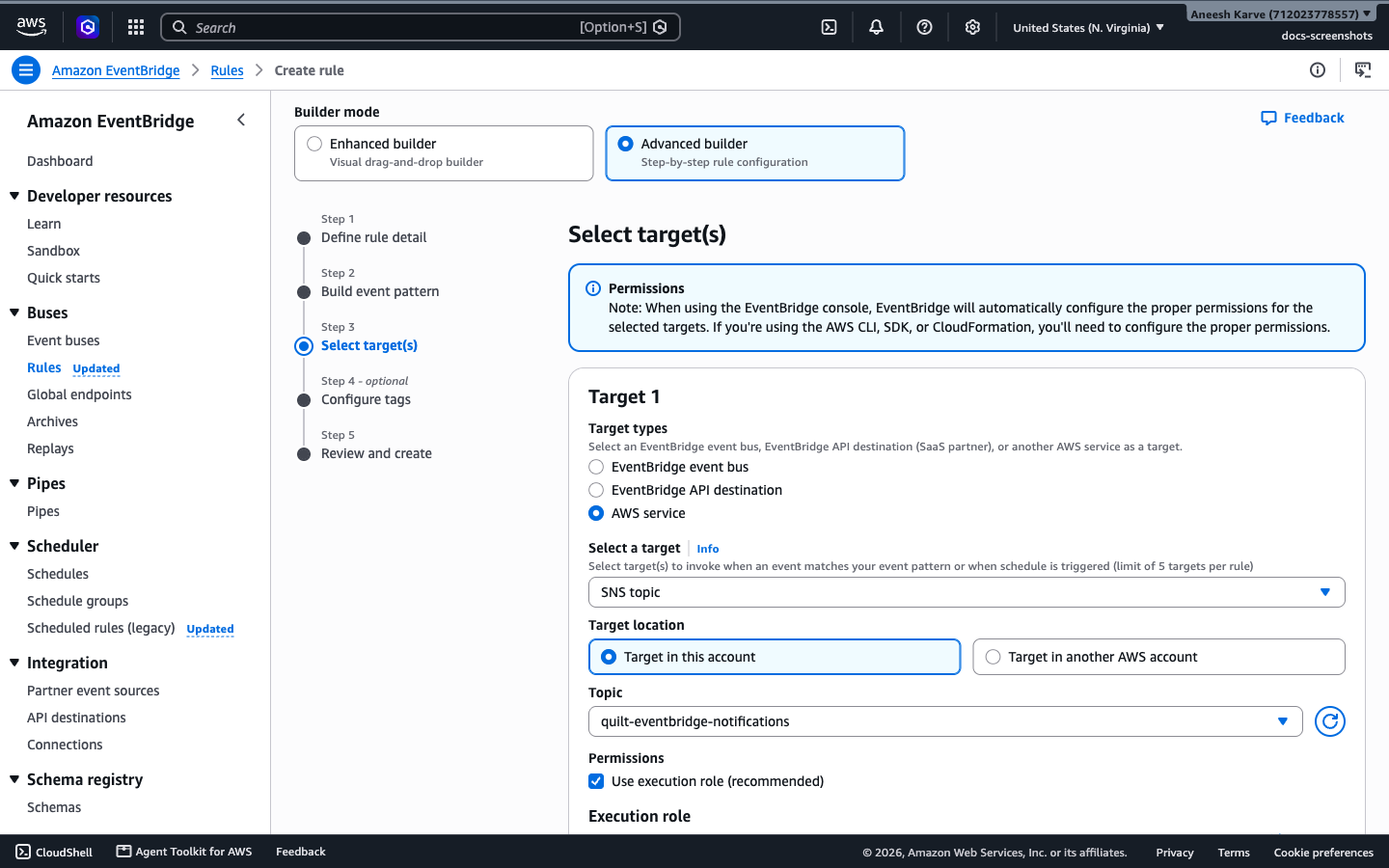
Step 5: Configure Event Target
Set the SNS topic as the target for EventBridge events:
- Target types: AWS service
- Select a target: SNS topic
- Target location: Target in this account
- Topic: Select the SNS topic created in Step 1
Step 6: Set Up Input Transformer
Configure the input transformer to convert EventBridge events to S3 event format:
Input Path:
{
  "awsRegion": "$.detail.awsRegion",
  "bucketName": "$.detail.requestParameters.bucketName",
  "eventName": "$.detail.eventName",
  "eventTime": "$.detail.eventTime",
  "isDeleteMarker": "$.detail.responseElements.x-amz-delete-marker",
  "key": "$.detail.requestParameters.key",
  "versionId": "$.detail.responseElements.x-amz-version-id"
}
Input Template:
{
  "Records": [
    {
      "awsRegion": <awsRegion>,
      "eventName": <eventName>,
      "eventTime": <eventTime>,
      "s3": {
        "bucket": {
          "name": <bucketName>
        },
        "object": {
          "eTag": "",
          "isDeleteMarker": <isDeleteMarker>,
          "key": <key>,
          "versionId": <versionId>
        }
      }
    }
  ]
}
Step 7: Save and Test the Rule
- Click Create rule to save the EventBridge configuration
- Test by uploading a file to your S3 bucket
- Check CloudWatch Logs for the EventBridge rule to verify events are being processed
Step 8: Configure Quilt
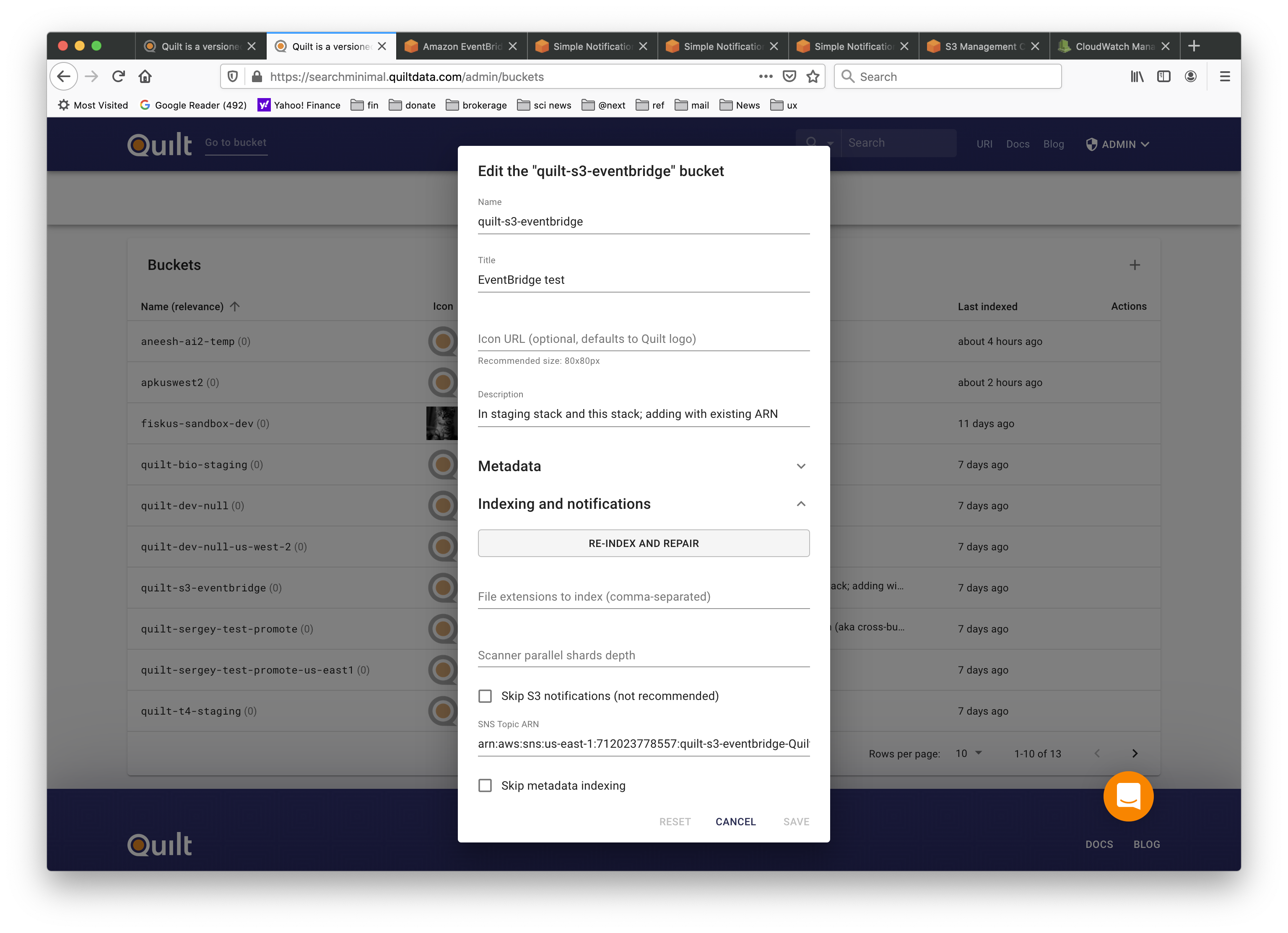
Add the bucket to Quilt using the SNS topic:
- Open Quilt Admin Panel → Buckets
- Click Add Bucket or edit existing bucket
- Bucket Name:
your-bucket-name - SNS Topic ARN: Paste the ARN from Step 1
- Important: Leave S3 Event Notifications disabled
Step 9: Initial Indexing
Perform initial bucket indexing:
- In Quilt Admin Panel, find your bucket
- Click Re-Index and Repair
- ⚠️ IMPORTANT: Do NOT check the “Repair” checkbox
- Repair would attempt to create S3 event notifications
- This would conflict with your existing service (FSx, etc.)
- Click Start Re-Index
🧪 Testing Your Setup
Verify Event Flow
Test that events are flowing correctly:
# Upload a test file
aws s3 cp test.txt s3://your-bucket-name/test.txt

# Check EventBridge metrics
aws events describe-rule --name quilt-s3-events-rule

# Check SNS topic metrics
aws sns get-topic-attributes --topic-arn YOUR_SNS_TOPIC_ARN
Validate Quilt Integration
- Upload a file to your S3 bucket
- Wait 1-2 minutes for processing
- Check Quilt catalog to see if the file appears
- Search for the file in Quilt’s search interface
🔧 Troubleshooting
Common Issues and Solutions
Issue 1: Events Not Appearing in Quilt
Symptoms:
- Files uploaded to S3 don’t appear in Quilt catalog
- Search doesn’t find recently uploaded files
Troubleshooting Steps:
- Check EventBridge Rule Status
aws events describe-rule --name quilt-s3-events-rule- Ensure
StateisENABLED
- Ensure
- Verify CloudTrail is Logging S3 Events
- Go to CloudTrail Console → Event history
- Filter by Event source:
s3.amazonaws.com - Confirm events are being logged
- Check SNS Topic Metrics
- Go to SNS Console → Your topic → Monitoring
- Look for “Messages published” metrics
- Validate Input Transformer
- Test the EventBridge rule with a sample event
- Check CloudWatch Logs for transformation errors
Issue 2: Permission Errors
Symptoms:
- EventBridge rule shows errors in CloudWatch
- SNS topic not receiving messages
Solution: Ensure EventBridge has permission to publish to SNS:
{
  "Version": "2012-10-17",
  "Statement": [
    {
      "Effect": "Allow",
      "Principal": {
        "Service": "events.amazonaws.com"
      },
      "Action": "sns:Publish",
      "Resource": "arn:aws:sns:region:account:quilt-eventbridge-notifications"
    }
  ]
}
Issue 3: Duplicate Events
Symptoms:
- Files appear multiple times in Quilt
- Excessive processing in Quilt logs
Solution:
- Check for multiple EventBridge rules targeting the same bucket
- Ensure you haven’t enabled both S3 Event Notifications AND EventBridge
Performance Considerations
Event Latency
- EventBridge Latency: ~1-5 seconds additional delay vs direct S3 events
- CloudTrail Dependency: Events only trigger after CloudTrail processes them
- Batch Processing: Consider batching for high-volume buckets
Cost Optimization
# Monitor EventBridge usage
aws events describe-rule --name quilt-s3-events-rule --query 'EventPattern'

# Check SNS costs
aws sns get-topic-attributes --topic-arn YOUR_TOPIC_ARN --attribute-names All
Known Limitations
EventBridge-Specific Limitations
- Bulk Delete Operations
- The
delete-objectsAPI (used by AWS Console bulk delete) doesn’t generate individualdelete-objectevents - Workaround: Use individual delete operations or manual re-indexing
- Impact: Bulk deletes may not be reflected in Quilt immediately
- The
- Event Transformation Complexity
- EventBridge events have different structure than native S3 events
- Input transformer may not capture all S3 event metadata
- Mitigation: Test thoroughly with your specific use cases
General S3 Event Limitations
- Lifecycle Policy Deletions
- S3 lifecycle deletions are not captured by CloudTrail or S3 Events
- AWS Documentation: Supported Event Types
You do not receive event notifications from automatic deletes from lifecycle policies or from failed operations.
- CloudTrail Dependency
- EventBridge S3 events require CloudTrail data events
- AWS Documentation: Lifecycle and Logging
Amazon S3 Lifecycle actions are not captured by AWS CloudTrail object level logging. CloudTrail captures API requests made to external Amazon S3 endpoints, whereas S3 Lifecycle actions are performed using internal Amazon S3 endpoints.
Best Practices
Security
- ✅ Use least-privilege IAM policies
- ✅ Enable SNS topic encryption
- ✅ Monitor EventBridge rule metrics
- ✅ Set up CloudWatch alarms for failed events
Reliability
- ✅ Test event flow end-to-end before production
- ✅ Set up dead letter queues for failed events
- ✅ Monitor CloudWatch metrics for all components
- ✅ Have a rollback plan to direct S3 events if needed
Cost Management
- ✅ Monitor EventBridge and SNS costs
- ✅ Consider event filtering to reduce volume
- ✅ Use appropriate SNS delivery retry policies
- ✅ Clean up test resources after implementation
📚 Additional Resources
Need help? Contact Quilt support or join our Slack community for assistance with EventBridge integration.