quilt
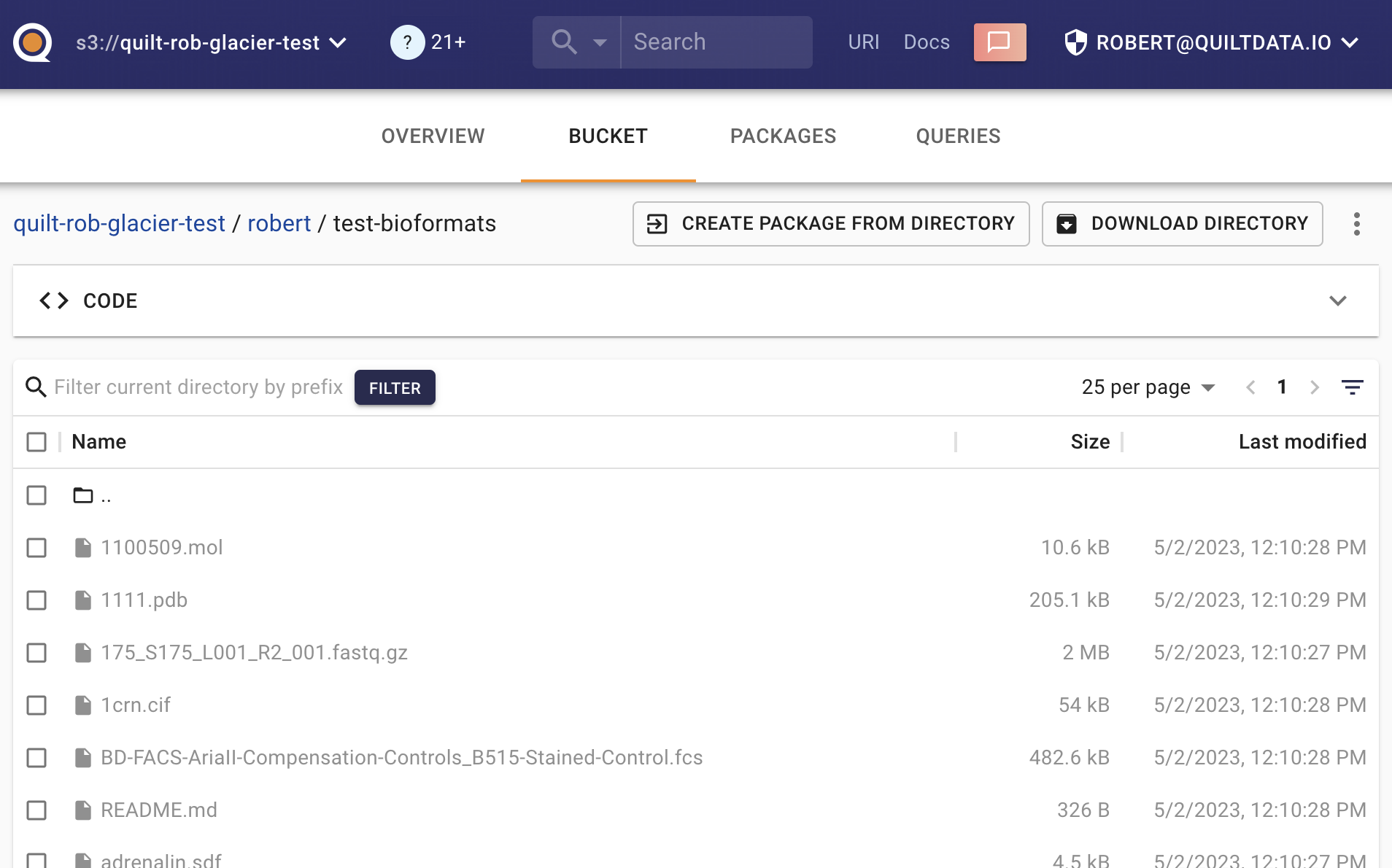
Every S3 bucket attached to Quilt has a “Files” tab in the Catalog that displays all files in the bucket.
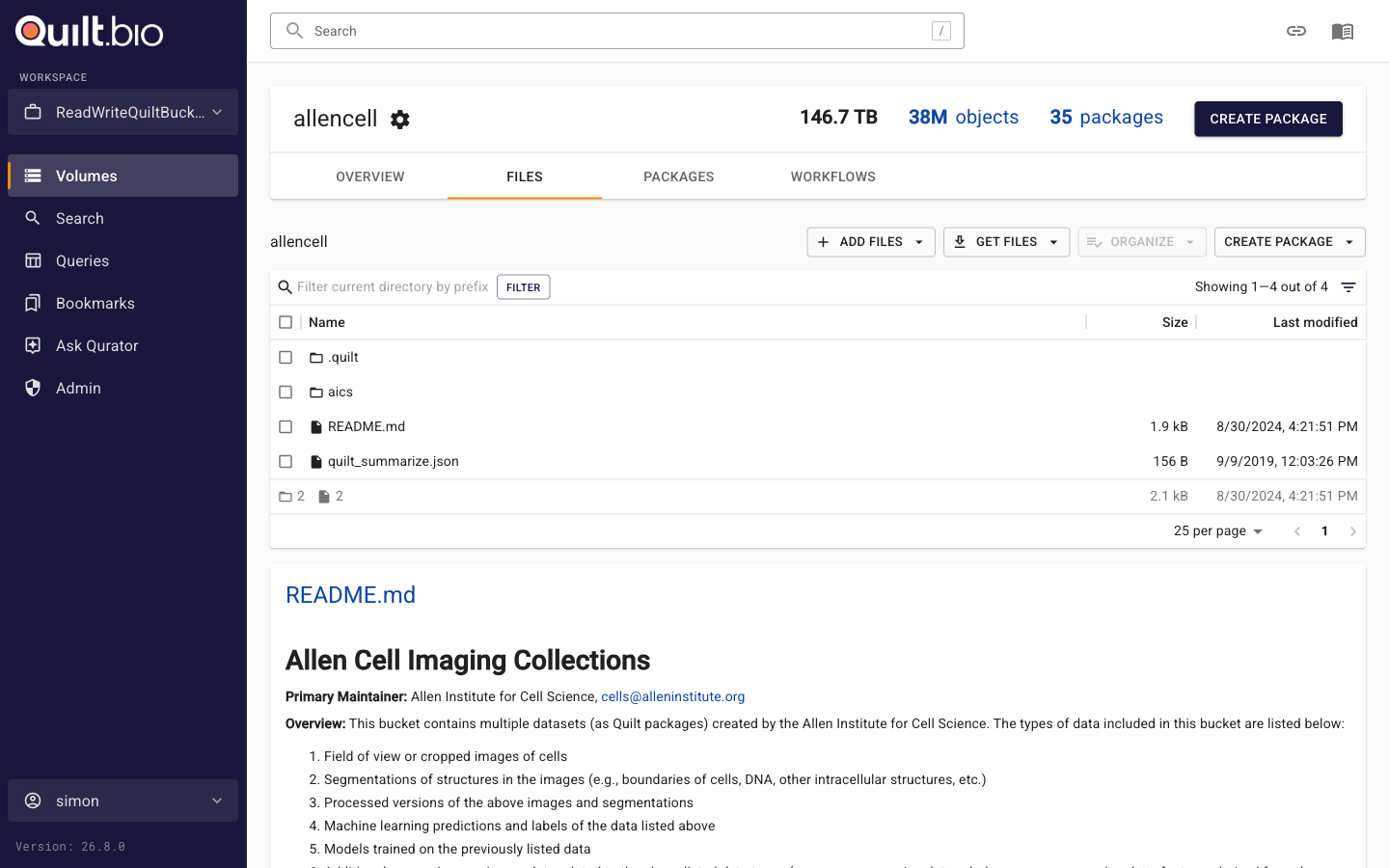
Clicking a file opens it with an inline preview, its version history, and a download button.
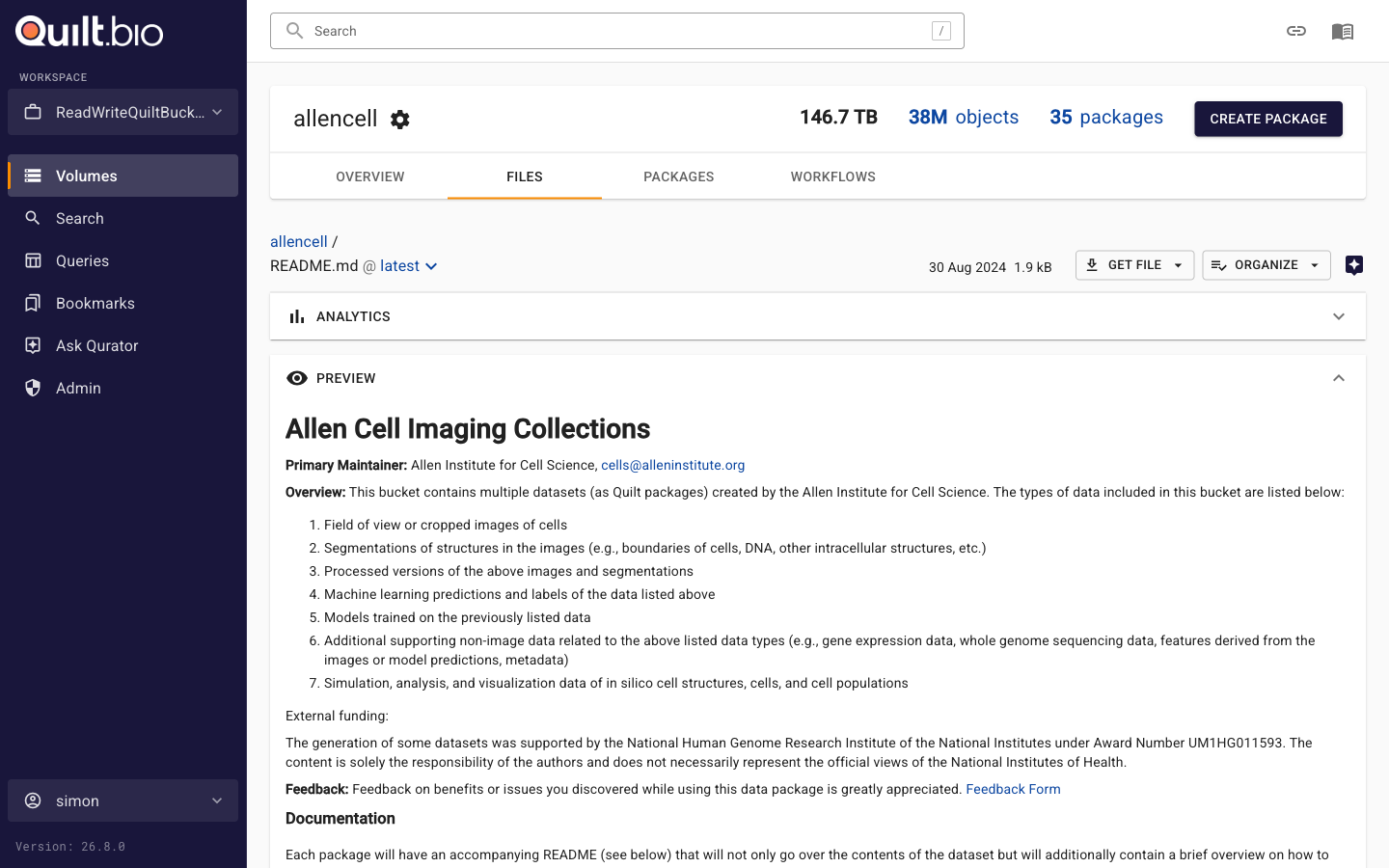
If desired, this tab can be hidden.
Uploading and deleting files
You can upload files directly to a bucket by dragging them onto the file listing or using the Add Files button (including into a new subfolder). One or more files can also be deleted from the listing or via the Organize menu without leaving the Catalog. On versioning-enabled buckets, deletion adds a delete marker so prior versions remain available from packages; on unversioned buckets the object is permanently removed.
File and directory delete buttons are hidden by default. Administrators
can enable them by setting ui.actions.deleteObject in the
Catalog configuration.
Creating packages from bucket files
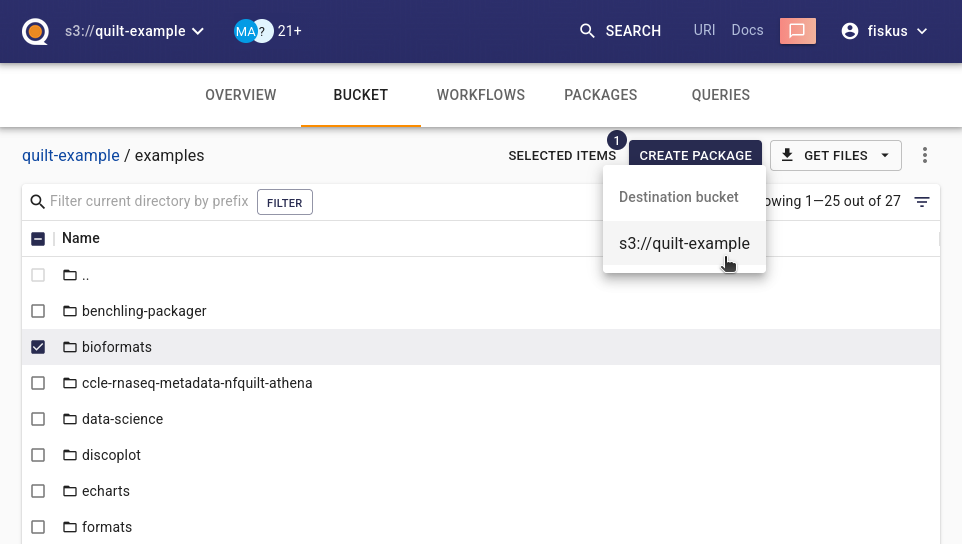
You can create packages directly from files already stored in S3 buckets
without downloading and re-uploading them. Even without a workflow
configuration file, users can create packages from files in the current
bucket, either by selecting them directly or by using Add Files from
Bucket when revising a package. To disable adding files from any
bucket (including the current one), set ui.sourceBuckets to an empty
dictionary {} in the Catalog configuration.
Package creation uses the current bucket by default.
With workflow configuration,
only explicit successors are available as destinations. See
workflow configuration
for details.
Bookmarks
To create a package that includes multiple files from different directories in a single S3 bucket, or even across different S3 buckets attached to Quilt, you can browse and create a “bookmark” of chosen files. Select files by checking the box and clicking “Add to bookmarks”. You can also navigate to a specific file and bookmark an individual file by clicking “Add to bookmarks”.
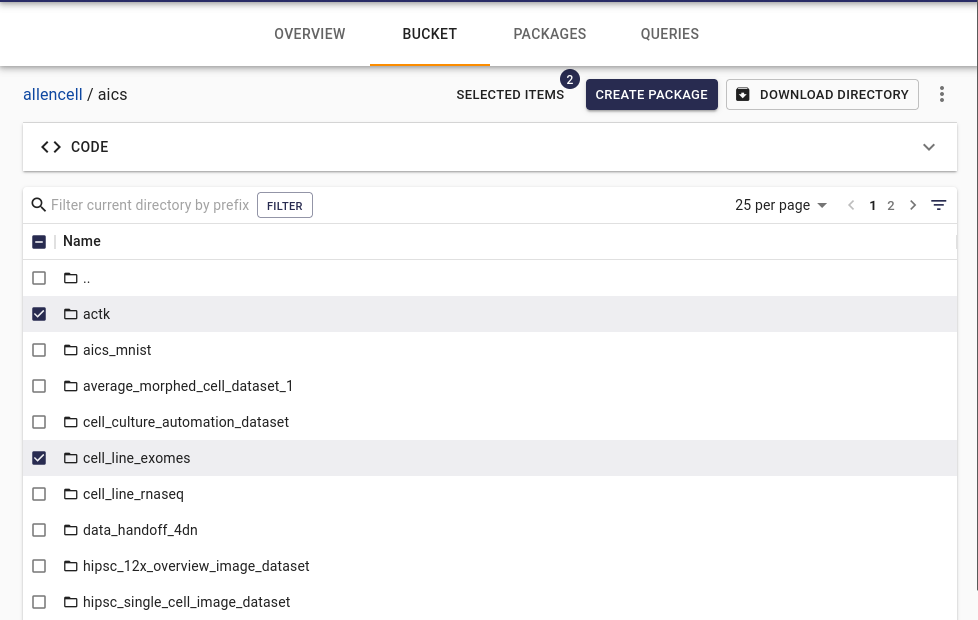
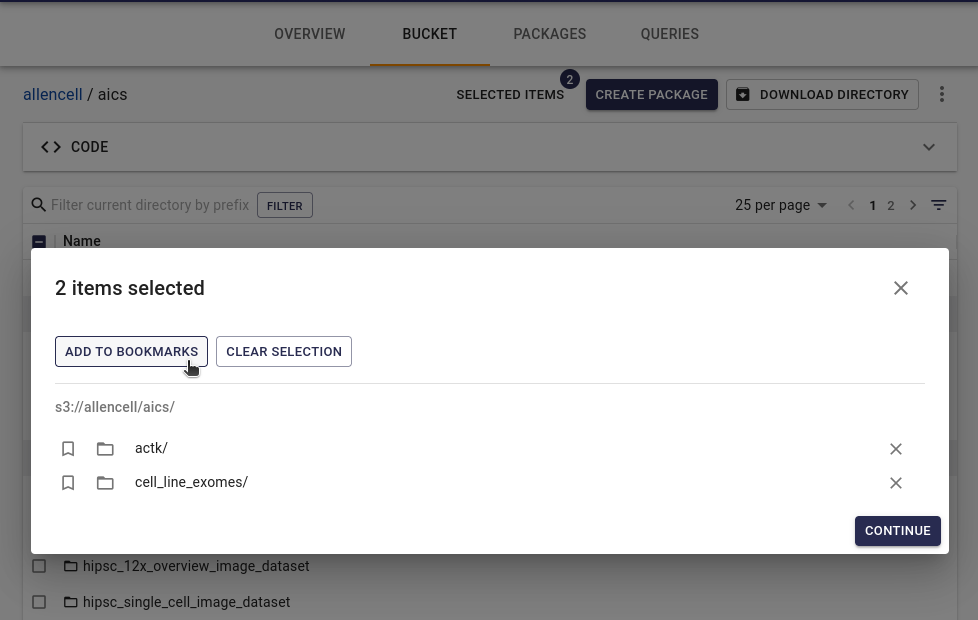
Open the Bookmarks pane (listed in the User account menu) and optionally create a new package from the bookmarked files.

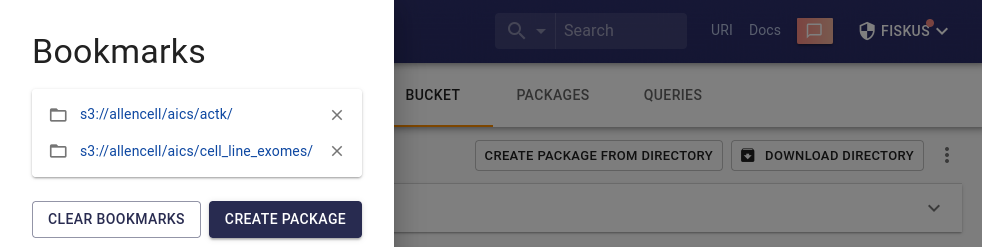
Text editor
Inline editing of plain text, Markdown, JSON and YAML file formats is supported.
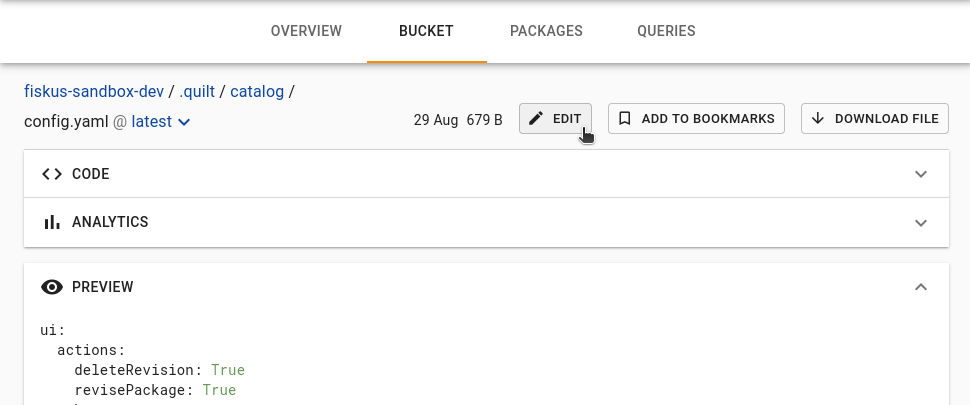
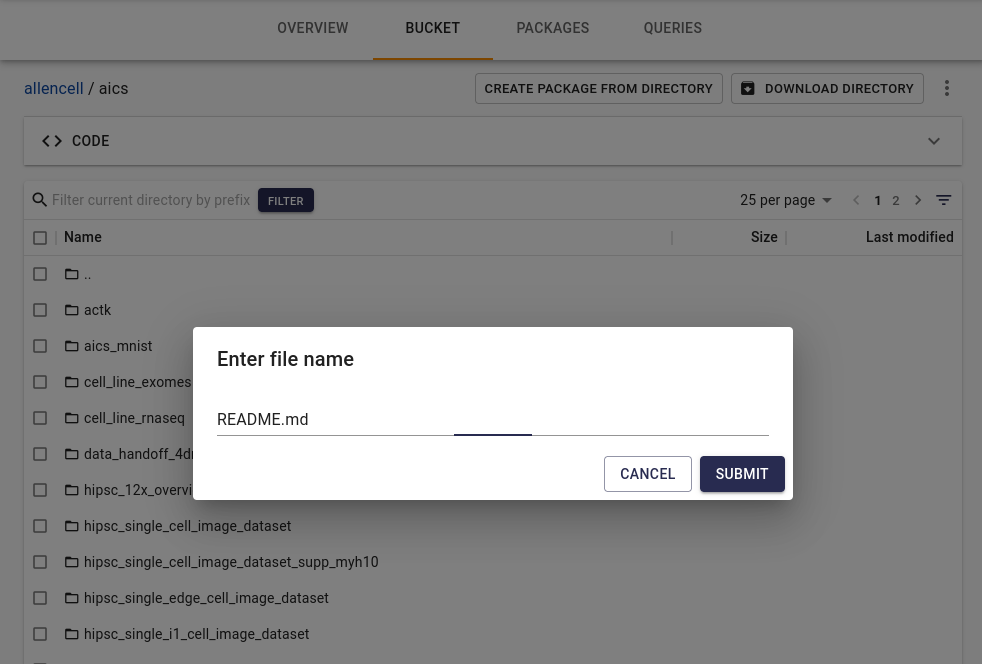
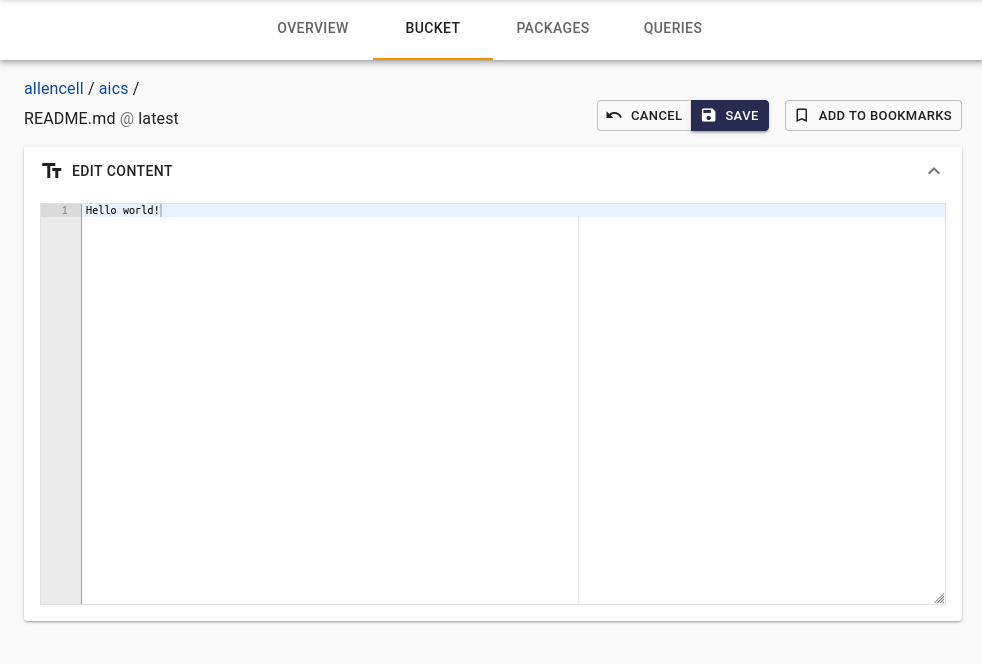
New text files can be created individually in editable file formats. To create one, click the «kebab» menu (three vertical dots) located in the far-right, above the file browser. Choose a file name and format (the default is README.md), enter your content, and click save.
Copy URI button
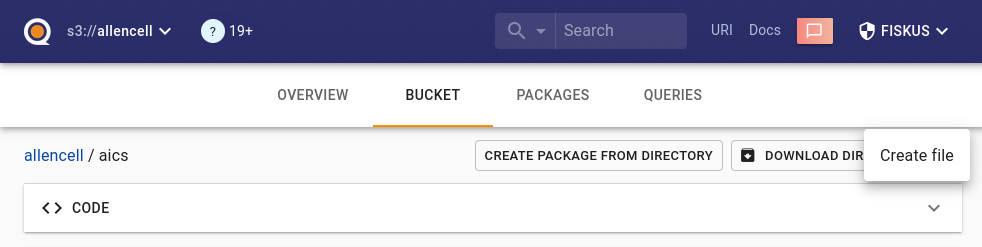
Files and directories include a copy-URI action on the download button,
making it easy to copy an s3:// URI for use in scripts, notebooks, and
CLI workflows.
Working with Amazon S3 Glacier storage classes
Glacier storage classes are built for data archiving. Quilt is compatible with S3 bucket lifecycle rules that transition S3 objects to Glacier storage classes.
There are currently three types of S3 object archive storage class that
work differently with the Quilt Catalog, quilt3 CLI and Python API.
- S3 Glacier Instant Retrieval: Objects in this storage class are available as normal in the Bucket and Packages tabs in the Quilt Catalog.
- S3 Glacier Flexible Retrieval (formerly S3 Glacier): Objects are not immediately available and appear “grayed out” in the Catalog.
- S3 Glacier Deep Archive: Objects are not immediately available and appear “grayed out” in the Catalog.
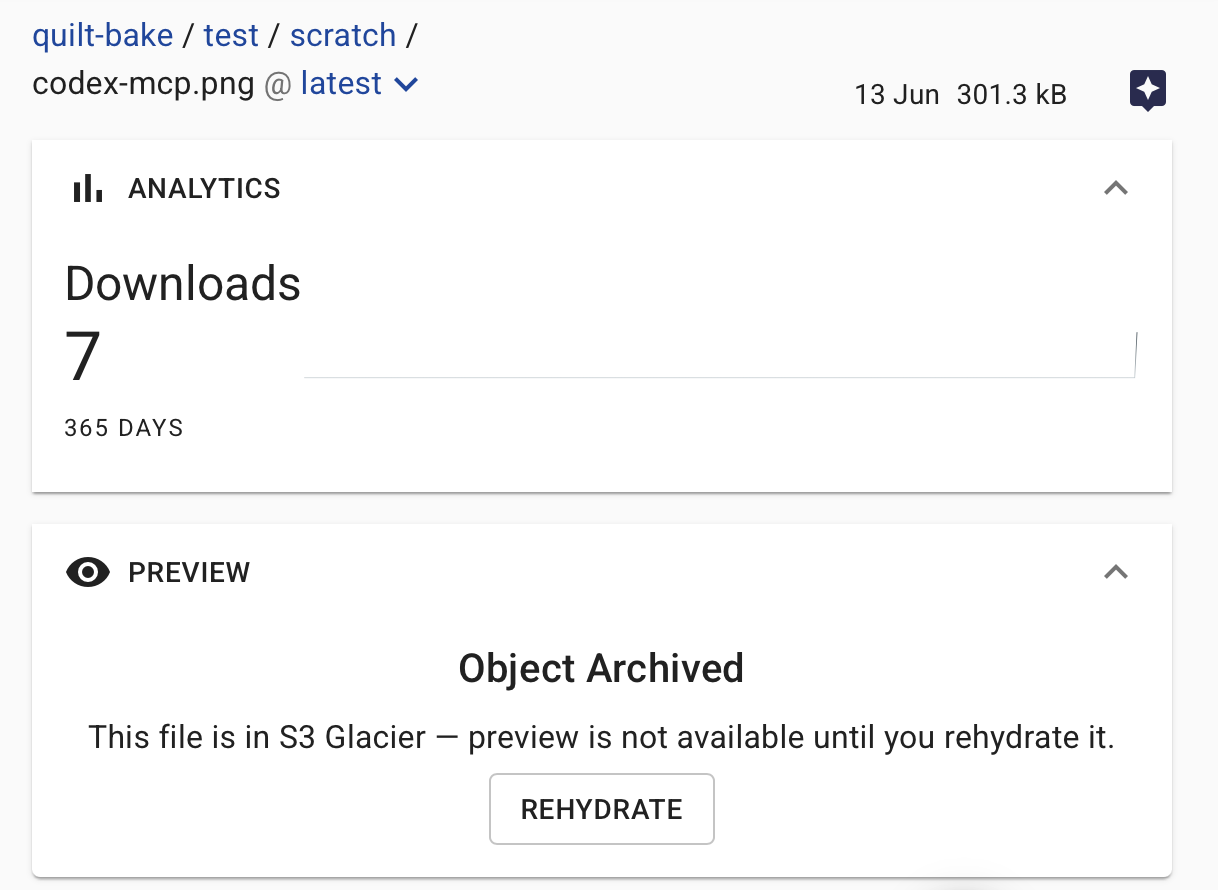
Previewing a specific “glacierized” S3 object shows an “Object Archived” message explaining that the preview is unavailable until the object is rehydrated, along with a Rehydrate button.
Restoring archived objects from the Catalog
New in Quilt Platform version 1.70
You can restore (rehydrate) archived Glacier and Deep Archive objects directly from the file preview in the Quilt Catalog — no AWS Console or CLI required. Click Rehydrate on the archived object’s page, then choose a retrieval tier (Standard, Bulk, or Expedited) and a duration (1–90 days) for how long the restored copy stays downloadable:
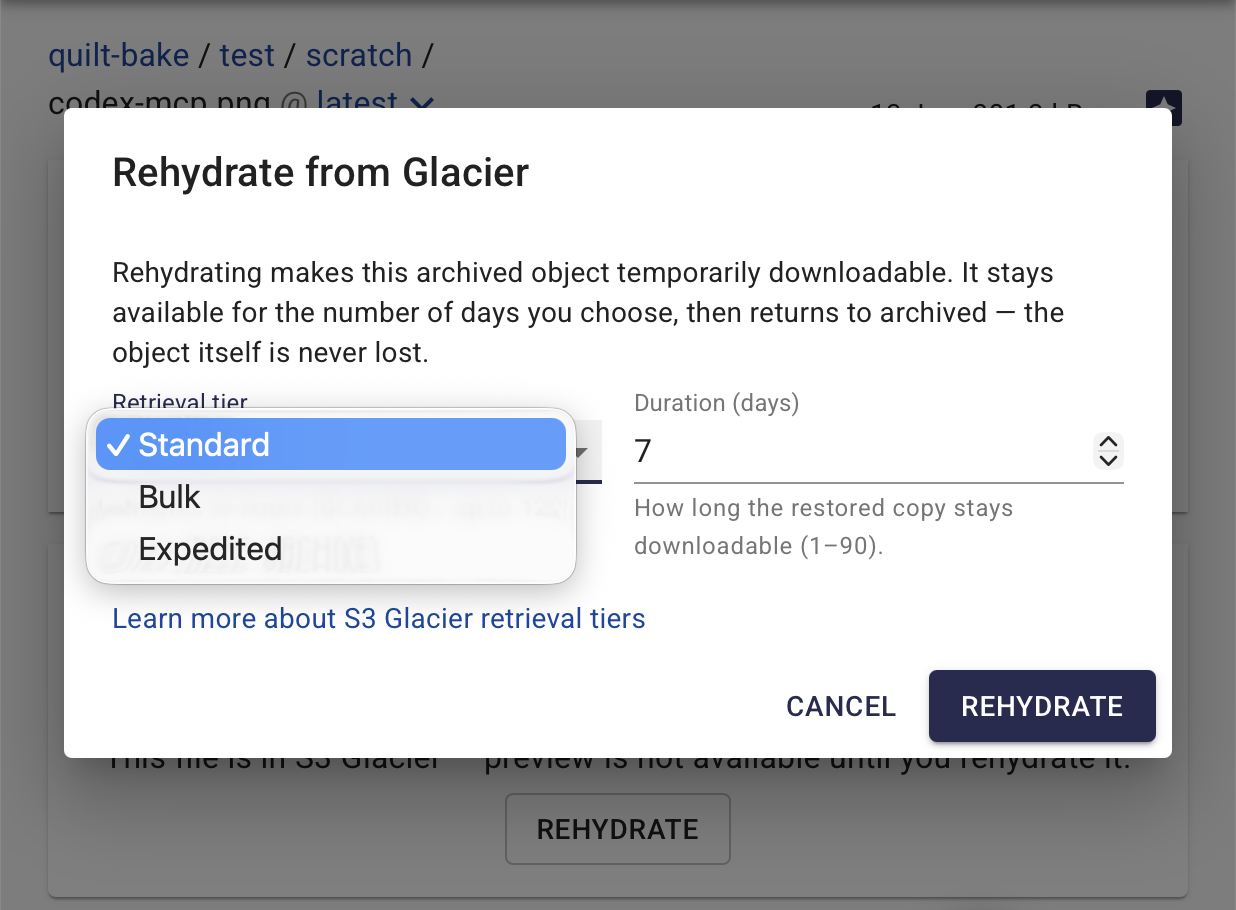
Quilt issues the s3:RestoreObject request on your behalf and reads restore
state back from the object’s S3 metadata, so the page reflects whether a
restore is in progress, complete, or expired. Rehydration is temporary — the
object returns to archived storage after the chosen duration, and the
archived object itself is never lost.
Managed read/write roles automatically include s3:RestoreObject. Admins
can hide the Rehydrate control via the ui.actions.restore preference
(see Preferences).
The AWS Glacier service is rapidly evolving and may impact the functionality of the Quilt Catalog and/or API.