quilt
Qurator Omni is an always-available AI assistant embedded directly into the
Quilt web catalog. It allows users to interact with S3 buckets and search
functionality through natural language. Qurator Omni leverages advanced models
like Claude, integrated via Amazon Bedrock, enabling users to query, retrieve,
and summarize data instead of having to click through the GUI.
Qurator Omni is designed to streamline interaction with Quilt data by offering a conversational interface. Instead of navigating through various tabs and menus, or learning complicated search syntax, users can opt into the Qurator feature to ask complex questions in plain language and receive structured, actionable responses.
For example, users can ask for summaries of research on topics like “melanoma” or request key insights from a specific dataset.
Key Features
- Natural Language Queries: Ask complex questions like “What are the latest asthma treatments?” or “Summarize research on BRCA1 mutations.”
- Instant Summaries: Quickly digest scientific papers, datasets, or reports without reading everything.
- Platform Tools via MCP: Search packages and S3 objects, browse and create packages, read objects, run Athena SQL, and manage Tabulator tables — all through the same Quilt Platform MCP Server used by external MCP clients. Available in-catalog without enabling Quilt Connect; tools execute under the user’s catalog session and respect existing role and bucket permissions.
- Fine-Grained Permissions with RAG: Ensure Retrieval-Augmented Generation only queries the data you’re authorized to access, ensuring compliance with strict organizational policies
- Secure Cloud Environment: Work within your private AWS cloud, ensuring data stays secure while using state-of-the-art AI models.
Developer Tools
The Developer Tools menu (upper right of the Qurator chat window) provides:
- Swappable Models: Override the default Bedrock model for the current session by pasting a Bedrock Model ID or Inference Profile ID. The model must be enabled in the same region as your Quilt stack and support text, document, and image inputs.
- Session Recordings: Record a portion of a Qurator session and download (or clear) the resulting JSON log. Useful for tuning or debugging prompts and capturing structured results.
Connector Status
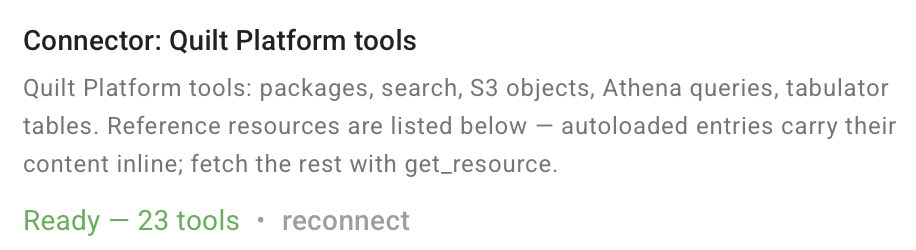
Qurator’s chat input shows the live connection status of each tool backend (e.g. the Platform MCP Server). When a backend is unhealthy the input is gated and inline actions appear in the helper-text region:
connecting…/reconnecting…— auto-progressing, no action required.couldn't connect— click reconnect to retry, or continue without to proceed with reduced tool access for the rest of the conversation. The latter dismisses the error and moves the connector tounavailable.unavailable— sticky; click reconnect to try again at any time.
Getting Started
To enable Qurator Omni:
- Opt-In to Qurator:
- Install Release 1.55 or later of the Quilt Platform CloudFormation template.
- Set the
Quratorparameter toEnabledin the CloudFormation template to enable the Qurator chatbot.
- Configure Claude Model:
- Log in to the Amazon Bedrock console.
- Ensure that the Claude Sonnet 4.5
(
us.anthropic.claude-sonnet-4-5-20250929-v1:0) inference profile is available in the same region as your Quilt deployment. Check Model support by AWS Region for details. - Enable the model by configuring it within your Bedrock environment.
- Optionally, set the
QuratorDefaultModelstack parameter to a different Bedrock model ID to override the built-in default. - Carefully monitor the model’s cost implications. The Claude model is charged based on usage, so ensure that you have the necessary budget allocated. Initial estimates are roughly a penny per page for complex documents.
- Start Using Qurator:
- Once activated, the Qurator chatbot will appear in the Quilt web catalog interface.
- Click Ask Qurator in the left-hand navigation to open the chat
interface.
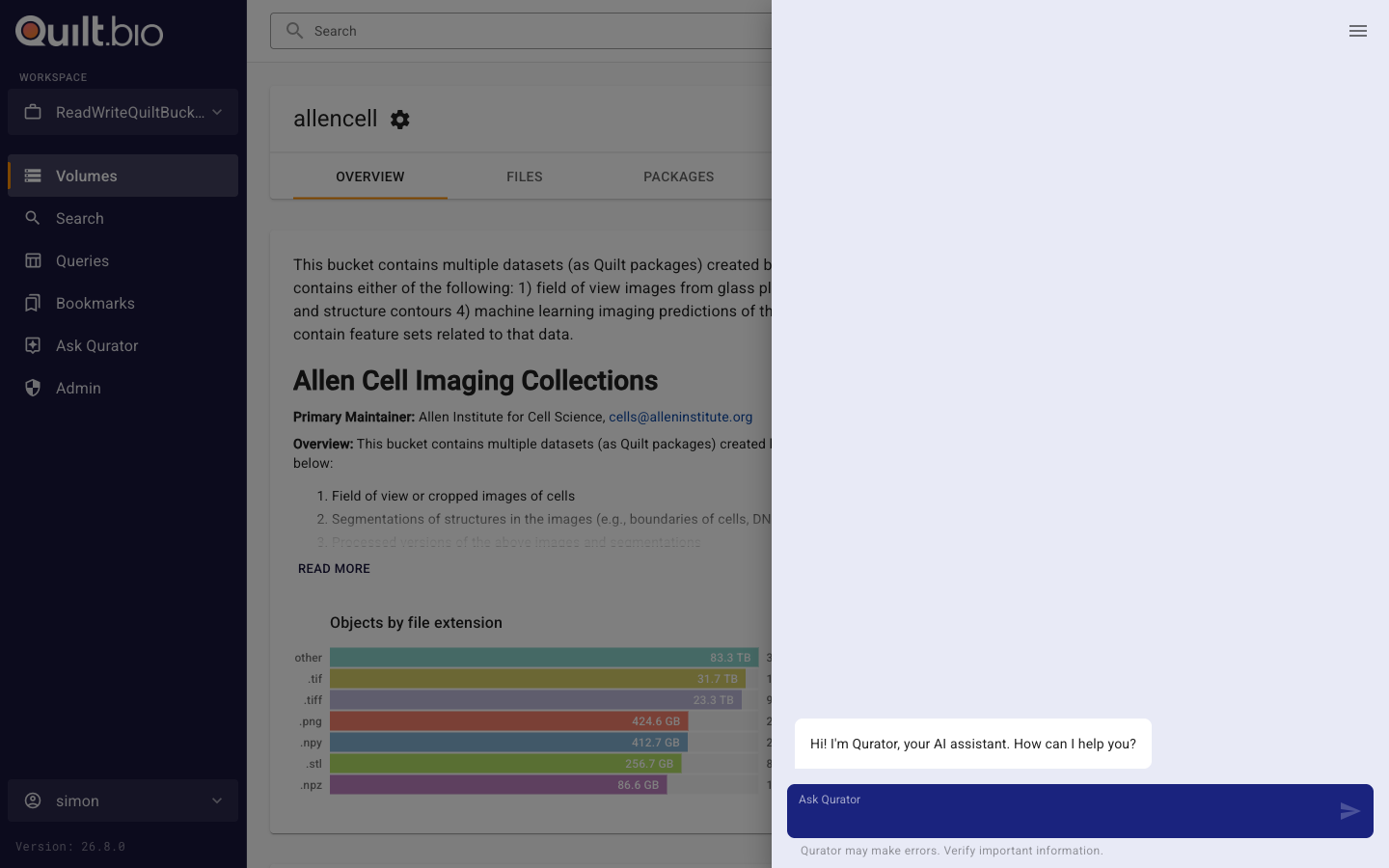
- You can begin by typing questions into the chat interface. For example, queries like “What are the key findings on small molecule delivery?” will prompt Qurator to search for relevant data and present a summarized overview.
Example Use Cases
-
Search: “What are the latest papers on melanoma?”
Qurator will search through the Quilt catalog using Elasticsearch and retrieve the most relevant data. -
Summarize: “Summarize the key points of this BRCA1 research.”
After selecting a specific document, Qurator will generate a clear, useful summary of the paper. -
Quick Scan: “List some of the authors doing breast cancer research?”
Qurator Omni will list authors and their contributions based on Quilt’s indexed datasets.
Key Benefits
- Enhanced Productivity: Eliminate the need for manual search navigation, enabling faster access to critical information.
- Improved Insights: Gain deeper insights from large datasets with automatic summaries.
- Streamlined Collaboration: Leveraging AI chat to provide background and context when working across disciplines.